See Your Vocabulary in Color as You Read
Your Vocabulary, Painted Over the Page
Word-status highlighting turns the Reader into a map of your own vocabulary. Switch it on, and the words in whatever you are reading get a faint tint based on how well you know each one: the words you are still learning glow one color, the words you have never met glow another, and the words you already own stay plain so your eye slides right over them.
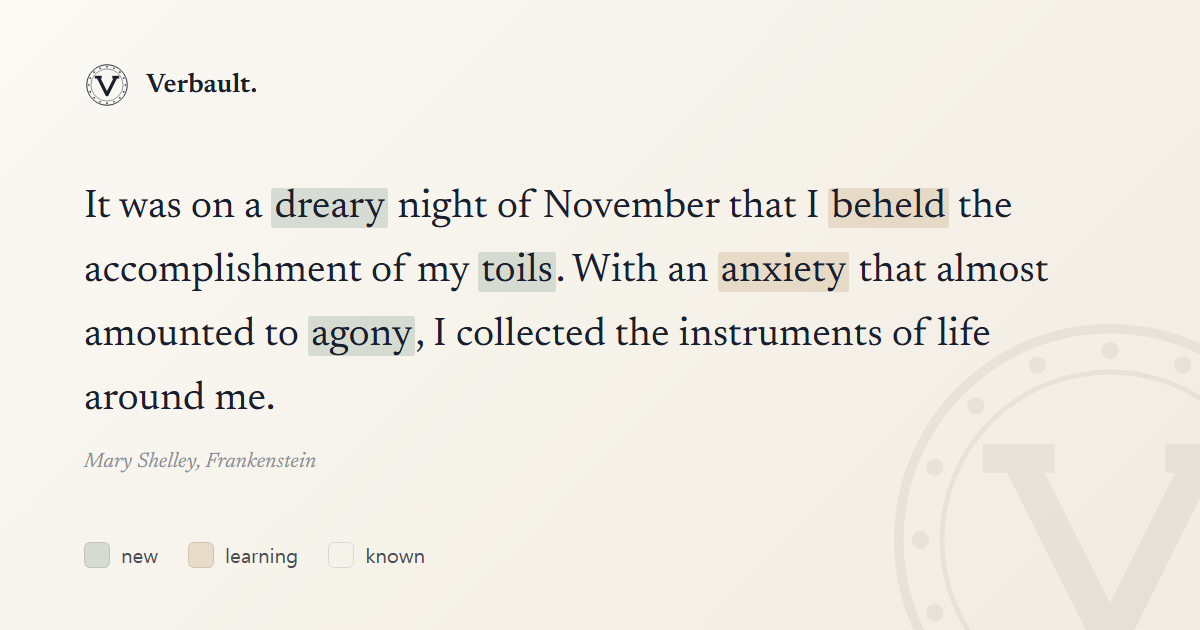
It answers a question that normally stays invisible while you read — out of everything on this page, which words are actually mine? Here is what it looks like over a sentence from Frankenstein:
What the Colors Mean
There are three states, and only two of them carry a color:
- New — a soft green tint. A word you have not met yet in Verbault: you have never looked it up, saved it, or read past it enough times for the app to assume you know it. These are your candidates — the words worth stopping on.
- Learning — a warm amber tint. A word you have already reached for once: you tapped it to see its meaning, or saved it to your Vocabulary Vault. Amber means "you and this word have met, but it hasn't stuck yet."
- Known — no tint at all. Words you already own are left completely plain. That is on purpose: coloring the words you know would just be noise, and the whole point is to draw your eye to the few words that need it.
Because known is the absence of color rather than a color of its own, a page you have read closely slowly turns plainer over time. Fewer tints means more of the text has become yours.
How Verbault Knows What You Already Know
If known words disappear, the fair question is: how does Verbault decide a word is already yours? It does not guess from your reading level or make you tag every word by hand. A word counts as known in one of two honest ways.
First, the words it is confident you already have. That includes the everyday, high-frequency words almost every English reader knows, plus any word you have read past several times without ever stopping to look it up. If a word keeps going by and you never need to check it, that is good evidence you know it, so Verbault quietly stops flagging it.
Second, the words you have genuinely studied and graduated. When you review a word in the Review and Play system and it survives long enough at growing intervals, it graduates from learning to known. This is the earned kind of known, and it is sticky: once a word has graduated, tapping or saving it again will not knock it back down to learning. You do not lose credit for a word you have already mastered.
So the colors are not decoration — they are a live read-out of that record. A green word is one the system has no evidence about yet. An amber word is one you are in the middle of. A plain word is one you have either always known or worked your way up to.
Turning It On
The highlighting is off until you ask for it, and switching it on takes about ten seconds:
- Sign in. The feature reads your personal word history, so it needs a free account. Signed out, the Reader simply shows every word plain.
- Open any text in the Reader. Paste a passage, upload a file, fetch a URL, or open a book from the library.
- Open the Reader's settings — the settings panel, the same place you set reading-aloud speed and theme.
- Find "Word status highlight" and tick new, learning, or both. Each is its own switch; there is no single master toggle. Known has no switch because it is never highlighted.
- Watch the page change. The moment you tick a box, matching words pick up their tint. Tick it off and they go plain again. Press Save to account and your choice follows you to every device.
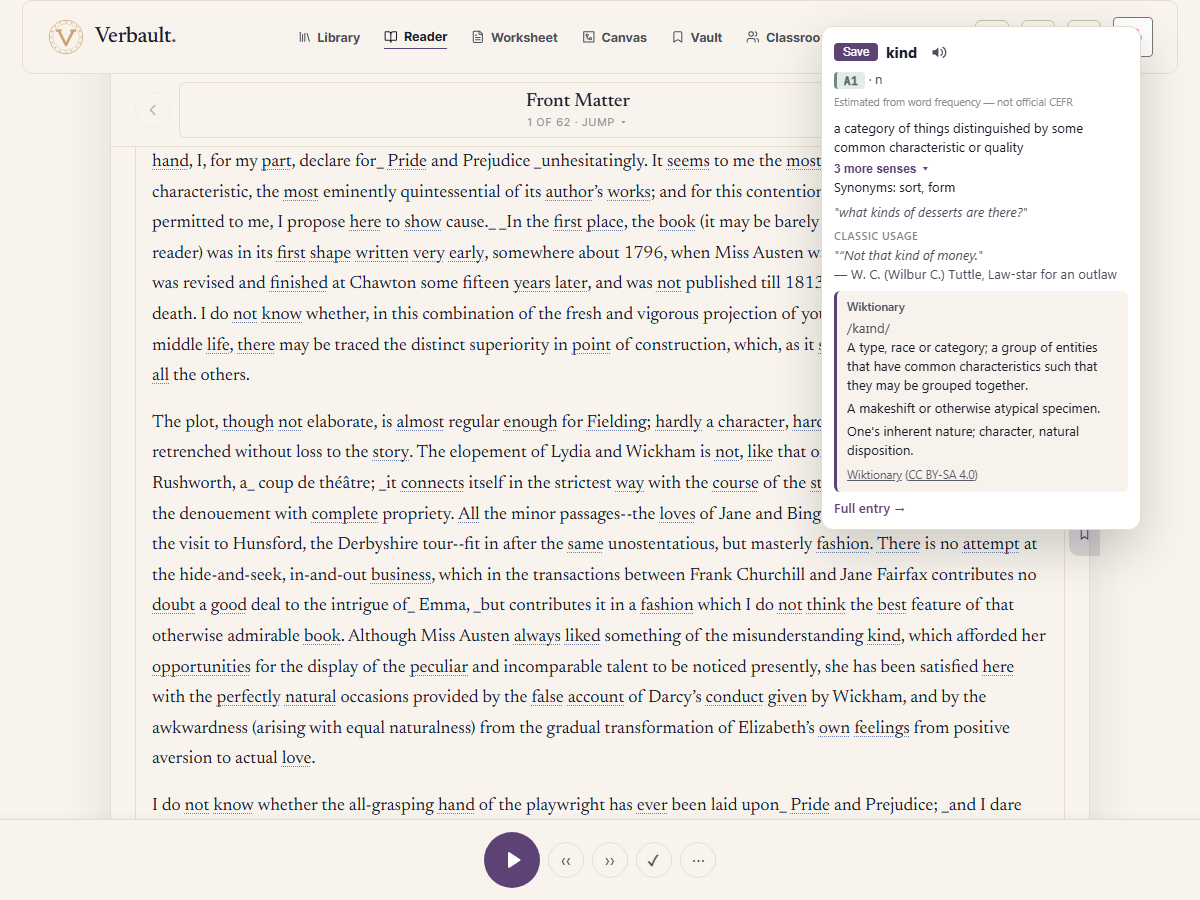
Once it is on, the tinting also updates as you read. Tap a green (new) word to see its meaning, and it turns amber on the spot — no reload, no losing your place. Looking a word up is the exact moment it becomes something you are learning, and the color follows that instantly:
Why It Is Two Switches Instead of One
Splitting new and learning into separate toggles is not fussiness — it lets the highlighting do two different jobs depending on what you are trying to get out of a text.
- Turn on new alone and the page becomes a hunting ground: the only words that light up are the ones you have never touched, which is exactly the set worth collecting into a study list.
- Turn on learning alone and reading doubles as review: your in-progress words glow wherever they reappear, so every book quietly drills the vocabulary you are already working on.
- Turn on both and you get the full map — new words to gather and learning words to reinforce, with everything you have mastered fading politely into the background.
Try It Now
Sign in, open Frankenstein or Pride and Prejudice, and turn on both switches under Word status highlight. Read a page and notice where the green clusters — those are the words this particular book is going to teach you. Tap a few and watch them turn amber, then head to the Vocabulary tab to collect them into a list.
For how the underlying reading levels work, see reading levels and the dictionary; for how a word travels from new all the way to known, see Review and Play.
Comments (0)
Log in to comment.